How To
Guide and Walkthrough
Your guide to creating using the saved templates and editing content
Keep your pages organized by maintaining parent/child relationships between pages.
As you build new pages, review needs – Does this need to be a page? Does this belong under a current created page?
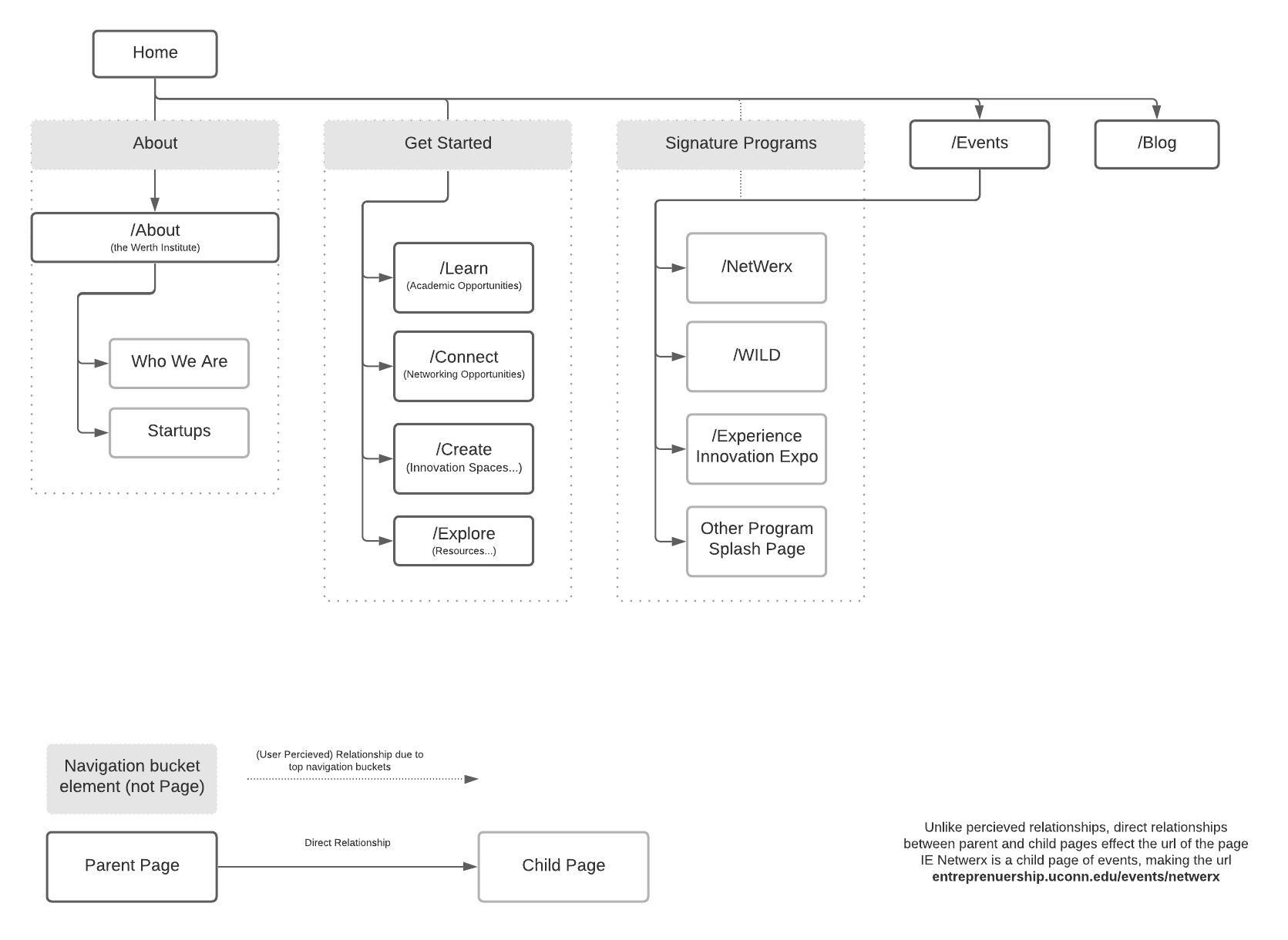
sitemap – updated Dec. 7th 2020
Organization is key when updating and modifying content. Content type and configuration plays a big role in keeping your website functioning and easy to navigate and when publishing content, you can add text, images, forms, etc. into both posts and pages. Generally, 80-90% of new content should be posts, which includes timely content (events, news, blogs). Updates to content (stats, people, initiatives) are often made to pages.
Key differences between posts vs pages
- Posts are timely. Pages are timeless.
- Posts are organized using categories. Pages are hierarchical and organized in parent/child relationships.
- Posts include a date and organized into an archive. Pages don’t.
For consistency, this website utilizes different templates when adding content to new pages.
01
Getting Started (by using Templates):
When you create a new page the option to use templates isn’t apparent. Follow the instructions below to access and apply saved templates.
- Click the Page Builder tab located on the right side of your visual editing area.
- Select the button Pre-built Layouts, or the layout button.
- Select Clone Pages. From here you can sift through all the pages on the website. Clicking any of them will make a copy of that page content and all. Template Pages can be found in there. If you type in
Templatein the search bar it quickly showcases just the Template files. - Apply the template
02
Set up Page Attribute
Page Attributes default to Default Template, however some pages require you to adjust the page attribute template in order to view properly.
This includes: Program Pages or pages with with Full-width rows.
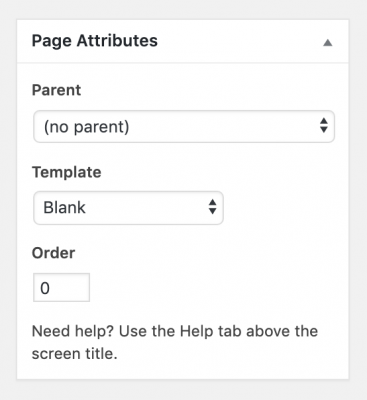
- Find the Page Attributes Menu (located on right on full screen)
- Check to see if your template requires you to update your page attribute template (see above)
- If Yes, select Blank in the Template section on the menu (This will allow full-width rows to function correctly).
- Select Parent of page (Pages are hierarchical in nature and each new page will often fall as a child of an already created parent)
- Update/Publish! (changes will not appear until saved, this includes Previewing Page beforehand)
Tips and Tricks
- Ever deleted a component of the original template, and wished you hadn’t?
Use the beginning steps to get it back without deleting the work you’ve done! Select the layouts button on top of your editing area. Select the appropriate template. As you press insert, choose replace before (or after) and delete what you don’t need. - Avoid using emojis – it causes an error that prevents saving posts
- Frankensteining Pages is a time saver! You can append any page or post below or above your content. Modify and delete as needed.
Specialty Pages
Some pages require different methods for updateUsing the Series Section
How to manually update with new curated content

Photos
Photosmust be 2:3 ratio
Update text as needed. Be sure to update the kicker label. These can (optionaly) link to specific categories (see examples below).
Blog Event
Linking:
Remember to hyperlink to the post! This will be done on the text in the caption area AND in the link section below
The blog page auto updates its content with posts, and thus, you’ll never need to update the specific page. Instead your focus will be on updating the content via Posts.
After post creation, the blog ‘page’ takes these posts (marked with the BLOG category) and organizes them from newest to oldest.
Blog Page breakdown:
What this page retrieves from Blog Posts
- The featured image on the post
- The title of the post
- The excerpt of the post
- And the link to the post
Featured Images
Featured images can be selected on the right-hand side menu when editing the post.
Post should be 4:3 or a consistent ratio in order to keep images/content aligned post to post on the blog page.
Titles
For Titles, often keeping it shorter is better. SEO practices advise titles 70 characters or less.
Excerpts
Excerpts can be placed via the excerpt section when editing the post. When no excerpts are available, part of the text of the post is taken. If the post is too long, it is cut and superseded by […]
! If you can’t find the excerpt section: go to the screen options menu (along the top of the page, to the right) and check √ excerpt. They will appear below the content section in edit post.
Page no longer in use – Ignore
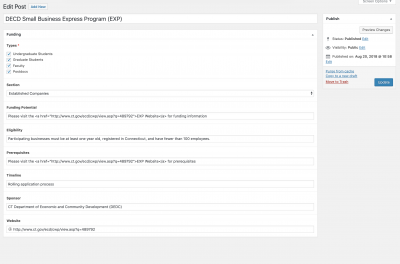
The funding page auto updates its content by retrieving information from the Funding Opportunities listed on the dashboard left-hand side menu.
Instead your focus will be on updating the content.
Creating or editing a funding opportunity can be accessed through that menu and filling in the information
Accessibility
As you begin your updates, please remember All University websites are required to be compliant with the Americans with Disabilities Act and are encouraged to adhere to Section 508 of the Rehabilitation Act of 1973 (specifically Subpart B, 1194.22 Web-based intranet and internet information and applications). While Aurora’s central themes are tested and kept accessible by ITS web developers, individual webmasters are responsible for keeping the content of their pages and sites accessible as well.
Keep in mind:
Images should have alt text
(good alt tags are generally: name of person for profile shots, findings for a graph, or description of scene for photos and illustrations)
Good alternative text provides the information conveyed in the image, including all text seen in the image and relevant details
Avoid uninformative hyperlinks, like “click here for…”
(Instead hyperlink text that describes the destination and can easily be scanned visually, or understood by screen readers.)
In addition to being more accessible, it will help with your Google search rankings. For example, “For more information about our admissions process click here” could be better as “More information about our admissions process”.
No Table Layouts
Layouts of rows and columns should be done with using the builder, not HTML Tables. Besides being inaccessible, HTML tables will also break your pages in mobile views! Tables should only be used when the content in a cell is defined by what row and column it belongs to.
Additionally, UITS provides Accessibility Tips which contains resources for creating accessible pages.
Visit UConn’s IT Accessibility website for more information.
Template Pages
General Page
Simple pages that include general information. Uses the default template page attribute
Program Page
Signature Programs, annual programs, or multi-event expos that require a landing page as opposed to a post. Uses the Blank template page attribute
Extra Assets
Extra assets and commonly used content that can be added to either a page or post.
This includes:
Hero Photo with Highlighted Hero Treatment, Grey Row, Photo and Bio Setup, Line Separator Row, Featured News/Event Setup, Full-width Hero Image Row
Template Posts
Blog Post Template
Post templates for the entreprenuerial blog page
Event Post Template
Post template for event pages. Should accommodate most event needs
Design, Typography, and Style
Below are examples of site typography, buttons, and adv CSS styles
HEX: #f0da20
RGB: 240, 218, 32
HEX: #2c3b4d
RGB: 44, 59, 77
HEX: #000e2f
RGB: 0, 14, 47
HEX: #f5f7f9
RGB: 245, 247, 249
HEX: #e0e4e8
RGB: 224, 228, 232
Header 1
Header 2
Header 3
Header 4
Header 5
Header 6
Paragraph Text
Lorem ipsum dolor sit amet, consectetur adipiscing elit, sed do eiusmod tempor incididunt ut labore et dolore magna aliqua. Ut enim ad minim veniam, quis nostrud exercitation ullamco laboris nisi ut aliquip ex ea commodo consequat. Duis aute irure dolor in reprehenderit in voluptate velit esse cillum dolore eu fugiat nulla pariatur.
Caption text for photo credits
This caption uses the class credit to activate
Default Button
class="btn"
Large Button
class="btn btn-lg"
class="btn btn-lg btn-block-md"
class="btn btn-lg btn-block"
Do not use <button>. Creates an
CSS styles used to modify content
Mods largely added by updating in Widget or Row Styles Menu > Attributes panel > class or inline
Row/Widget CSS Classes
.hide – hides widget or row
.blackwhite – styles widget images black and white
.profile – styles widget images for bios
.social – styles widget social media images
.success-stories – modified h4s in row. For News styled rows in design. Located on Home and Events page.
.titlecard – modifies h1s get a highlight style treatment (like event page)
Utility Classes
Fonts:
.balboa – Balboa font – Example
.balboa-caps – Balboa Caps font – Example
Font Color:
.yellow – Example
.white – Example
.light-gray – Example
.denim – Example
.UConnblue – Example